
Setting Up Your OmpuTag
Get your tag ready in just a few simple steps
Setup Steps
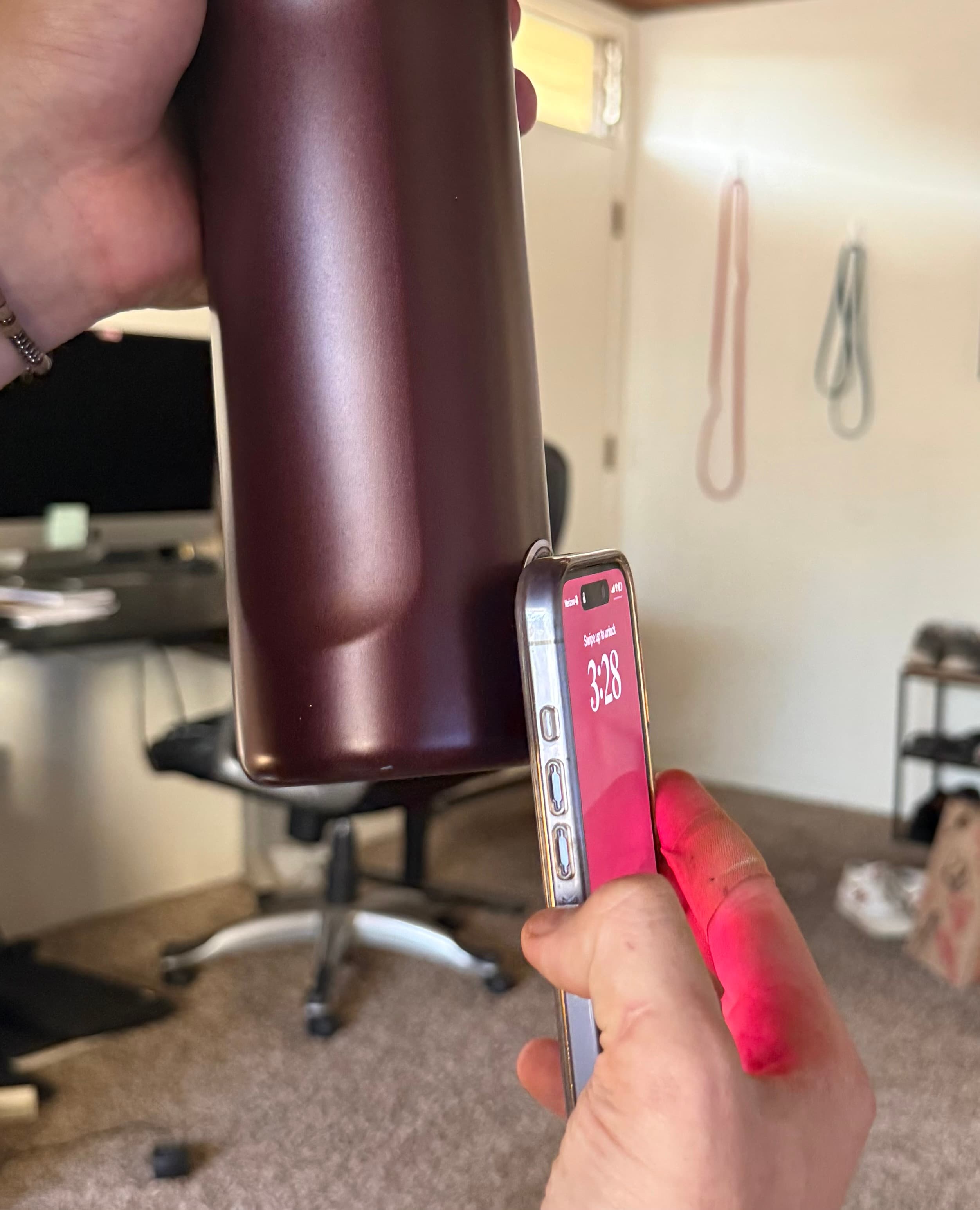
Tap Your Tag
Tap your OmpuTag with any NFC-enabled smartphone to automatically start setup.
Hold your phone near the tag. Your phone will automatically open the setup page with your tag ID already captured. No manual entry needed! Most modern smartphones (iPhone 7+, Android with NFC) work.
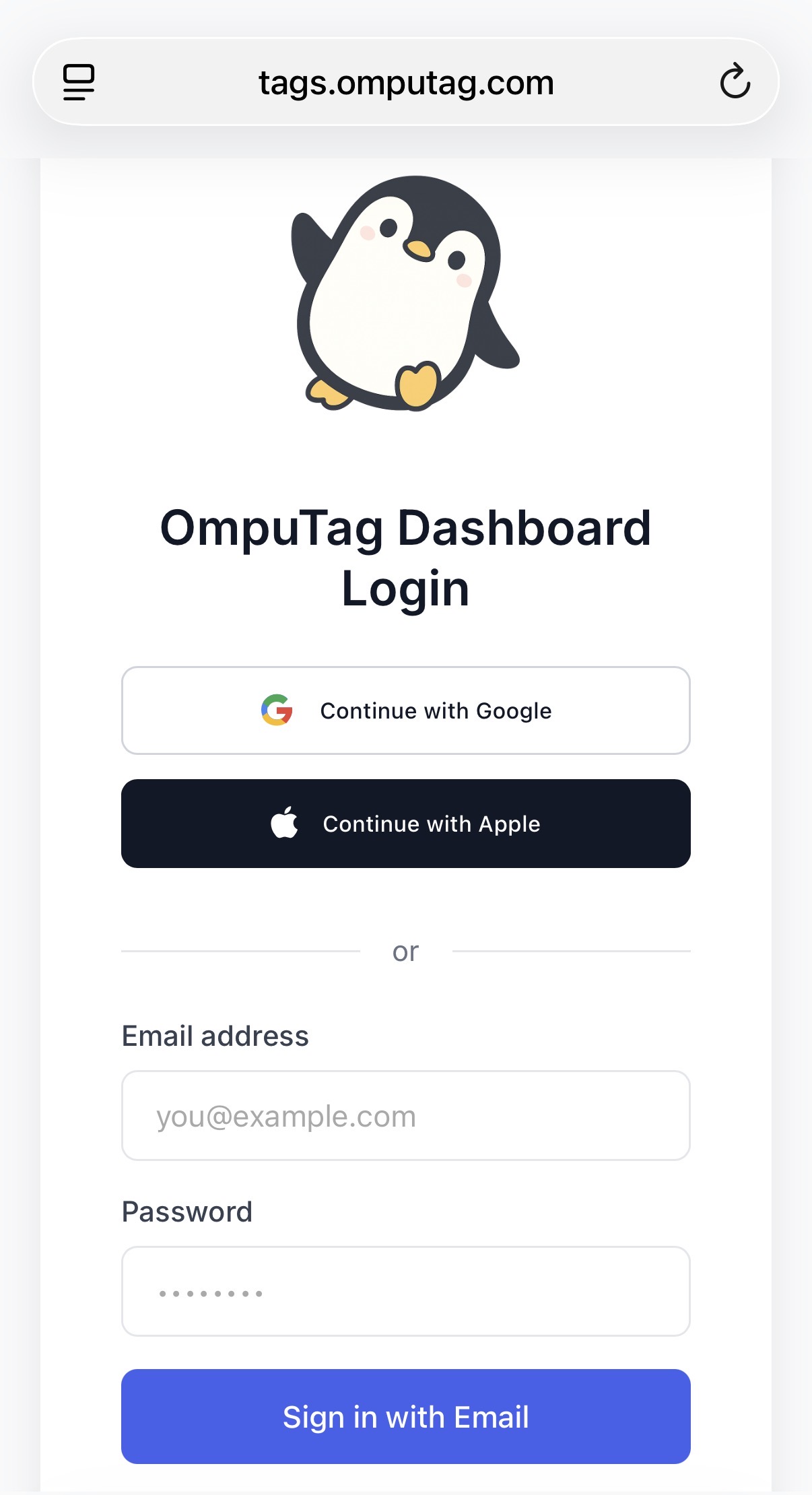
Create an Account or Sign In
Sign up for a free account or log in if you already have one.
Use your email address to create an account. This keeps your tag information secure and allows you to update it anytime. If you're not logged in, the system will redirect you to the login page.
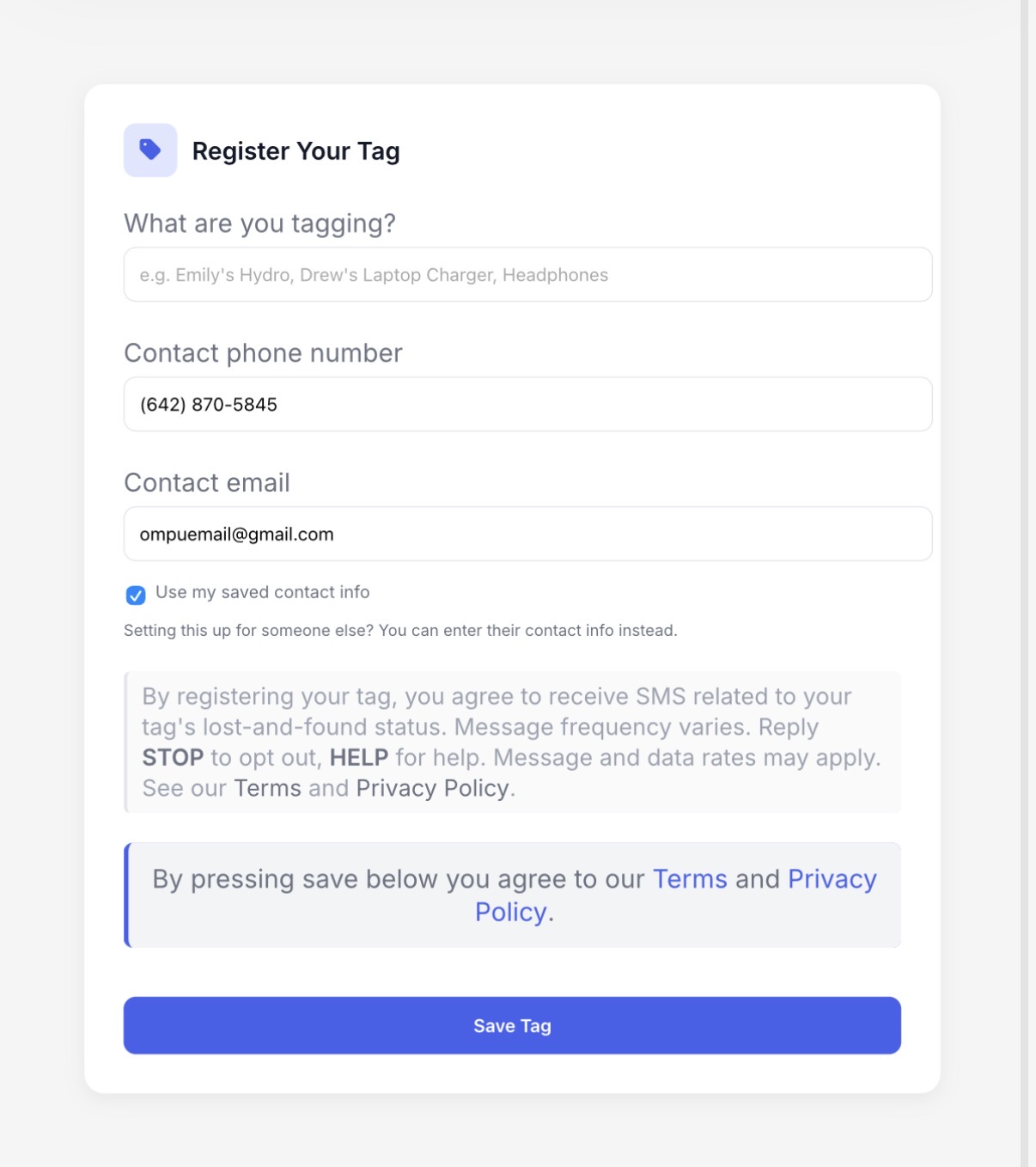
Register Your Tag
Add your contact information and customize what finders see when they tap your tag.
Your tag ID is automatically captured from the NFC tap. Just add your contact information and choose what details to display. You can update this anytime from your dashboard.
Stick It On
Apply your OmpuTag to your item. Make sure the surface is clean and dry.
For best results: Clean the surface with rubbing alcohol, let it dry, then firmly press the tag for 30 seconds. Avoid metal surfaces unless using an anti-metal tag.
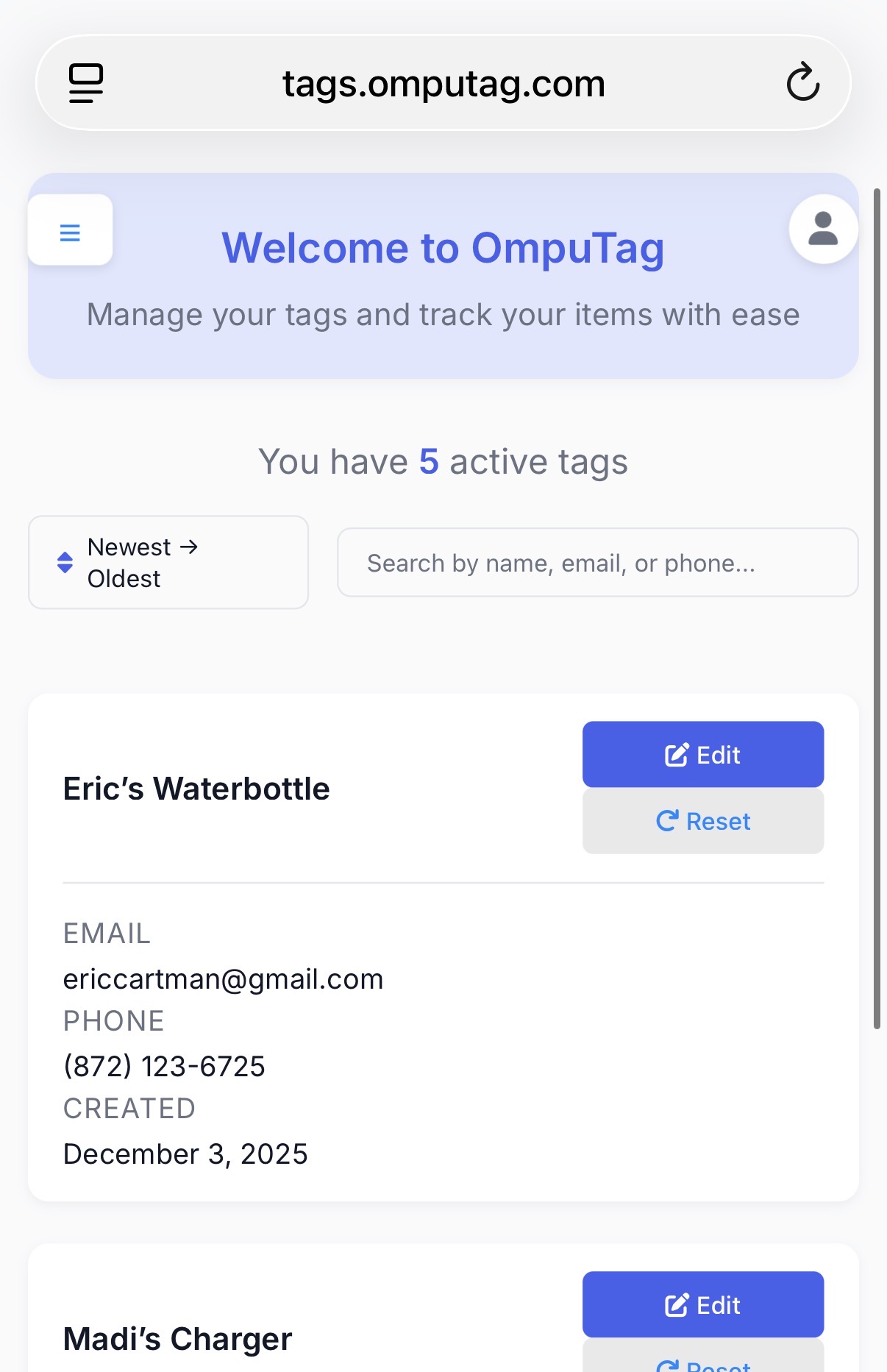
Optional: Manage from Dashboard
View and manage all your tags from your dashboard.
Your dashboard shows all your registered tags. You can update contact information, change settings, and see tag activity anytime.
Pro Tips
Best Placement
Place your tag on a smooth surface where a phone can easily tap it. Works on bottles, laptops, bags, and luggage. Avoid curved or textured areas when possible.
Privacy Built-In
Your contact info is never shared directly. All messages go through OmpuTag's secure relay system.
Update Anytime
You can change your contact info anytime in your dashboard—no need to replace the tag.
Multiple Tags
Manage multiple tags under one account. Ideal for covering all your items.
Troubleshooting
Phone won't scan the tag
Make sure NFC is enabled (Android only). Tap slowly and move the phone around the tag. Try the top or back of the phone since scan position varies by model.
Tag not sticking well
Clean the surface with alcohol and let it dry. Apply firm pressure for 30–60 seconds. Tags perform best on smooth, flat surfaces (not fabric or rubber).
Can I move the tag?
Not recommended. Removing the tag can weaken adhesive and reduce performance. For best results, apply once and leave it in place.
Lost your tag ID?
Log into your account to view all registered tags. If it is unregistered, contact support with your order details.